Solution Doesn't Load
Troubleshooting AI solution loading issues
Check Screen & System Audio Recording Permissions
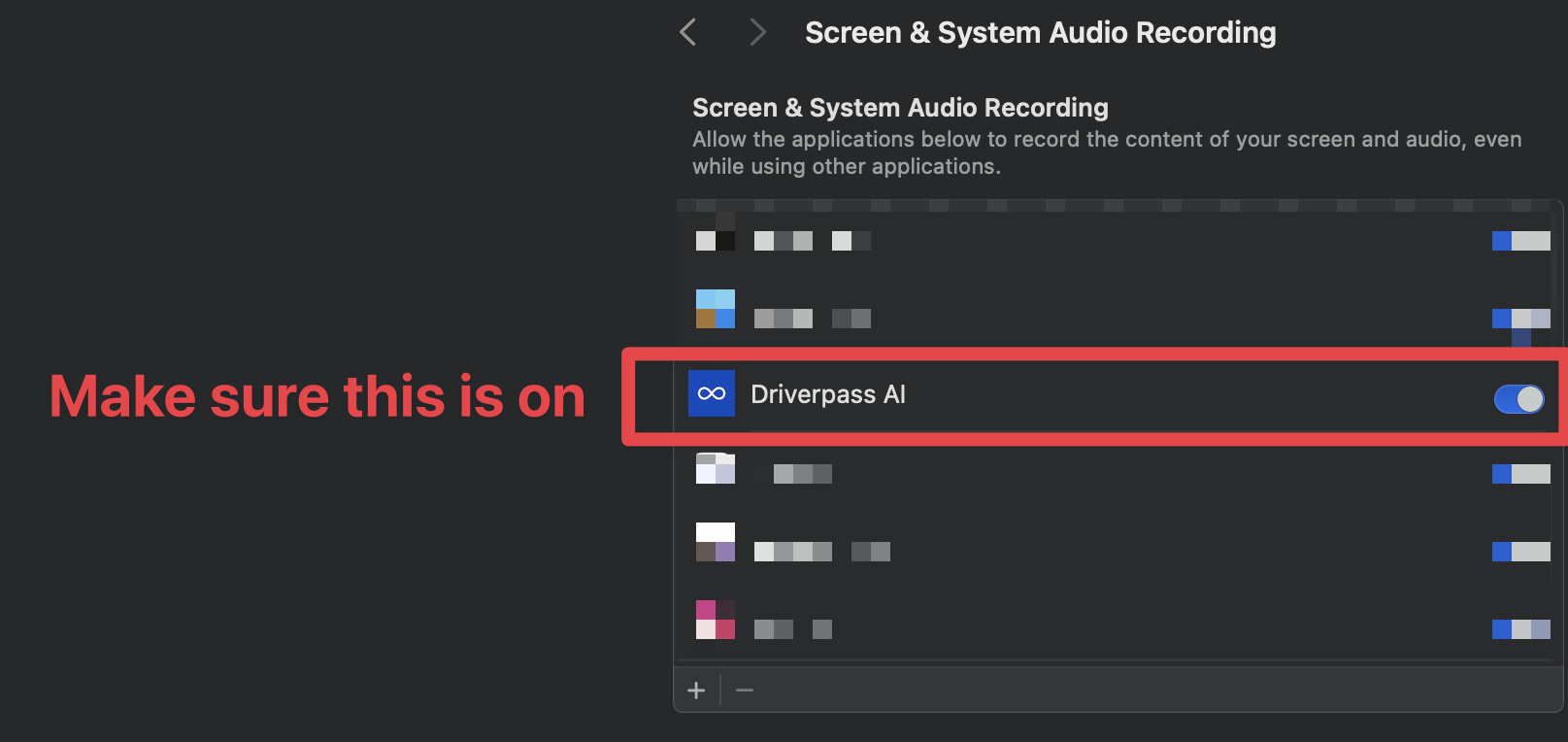
Make sure Screen & System Audio Recording permissions are enabled for DriverPass (also if these are not enabled a yellow pop up might appear)
Reinstall the Application
Delete all existing installations and reinstall from our website
Contact Support
If the issue persists, reach out to our support team for assistance
Grant necessary permissions
When you first launch DriverPass, macOS will ask for several permissions. Follow these steps carefully:
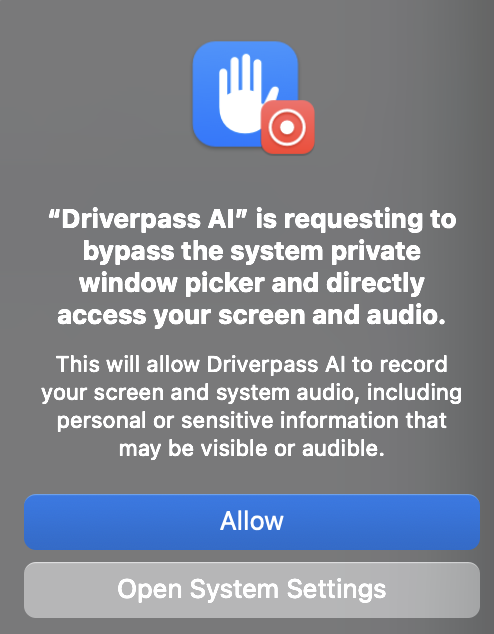
Step 1: Allow initial permission
You will see this dialog, please click "Allow":
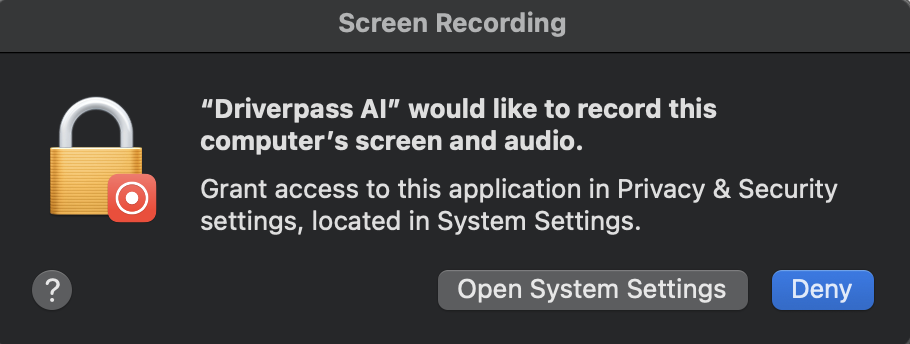
Step 2: Open System Settings
When you see this popup, please click "Open System Settings":
Step 3: Enable screen recording
In System Settings, make sure the permission is turned ON:
Important: DriverPass needs screen recording permission to capture practice test questions and provide AI study assistance. Without this permission, the app won't work properly.